Green Web Hosting: Finding your DNS Settings
In this article, we show you where to find the relevant DNS settings for a domain attached to your Green Hosting plan. This guide is useful for checking that your current DNS settings are correct or for manually adding records if your nameservers are managed externally.
Getting Started
To get started, you first need to log into your Online Control Panel. Unsure how to do so? Follow our guide HERE
Step One
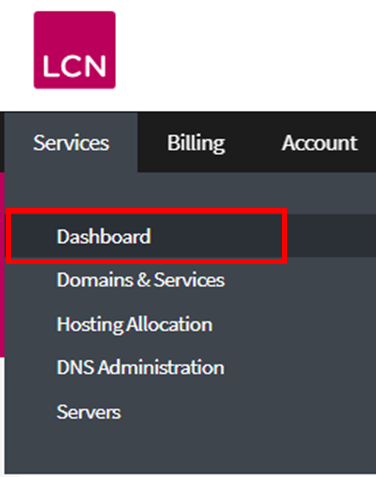
In your Control Panel, select the Services tab and then Dashboard.
Step Two
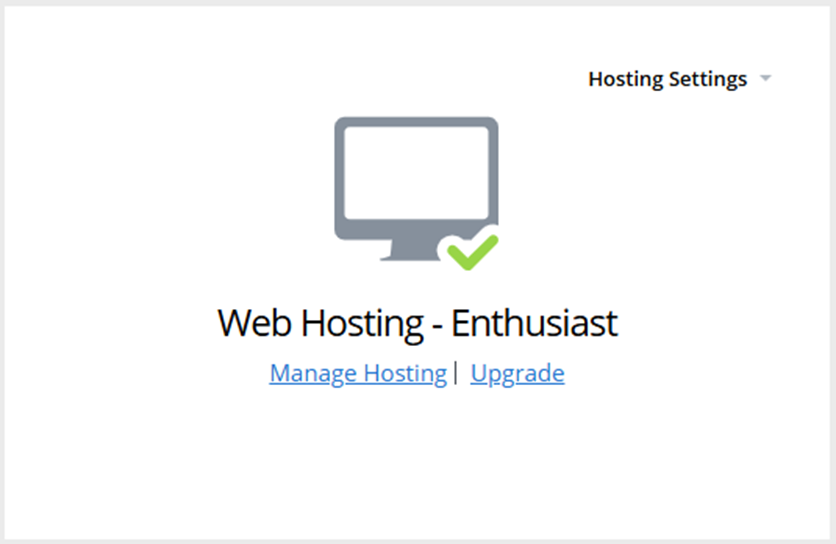
On the left hand side of the page, select Manage Hosting.
Step Three
On the right hand side of Website info, select the three dots.

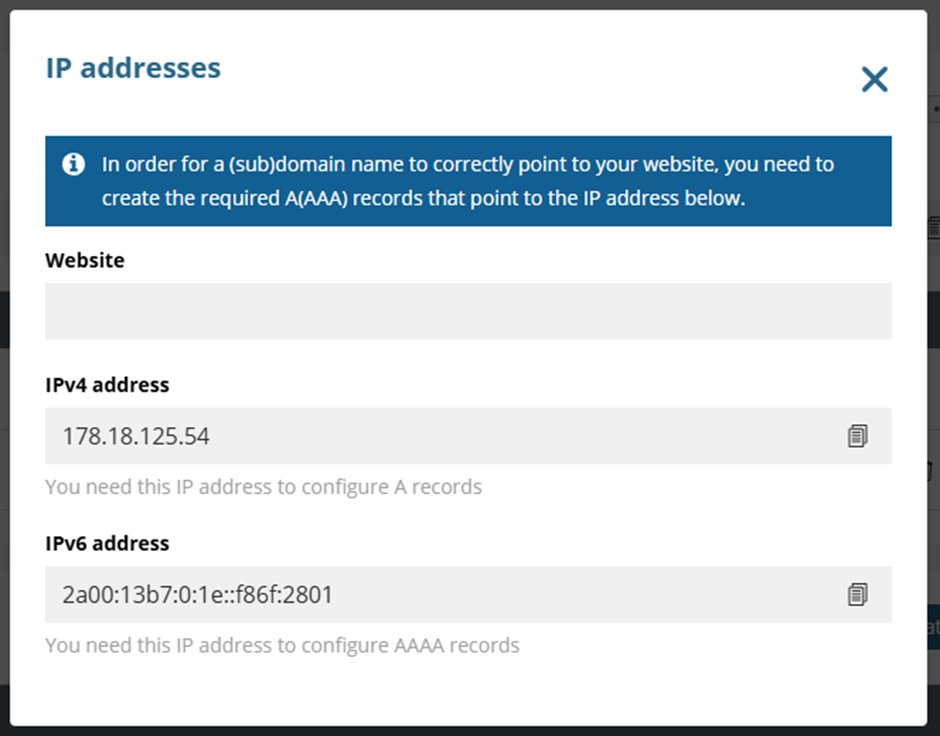
Then, select Show IP addresses.

Step Four
You will now be presented with your hosting’s IPv4 address and IPv6 address.
Step Five
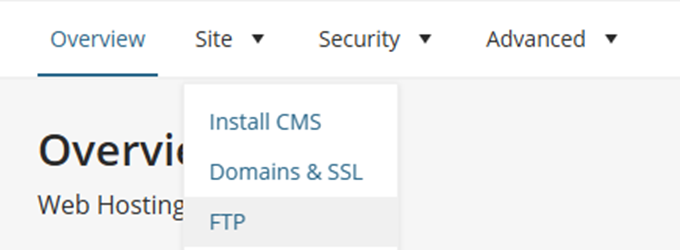
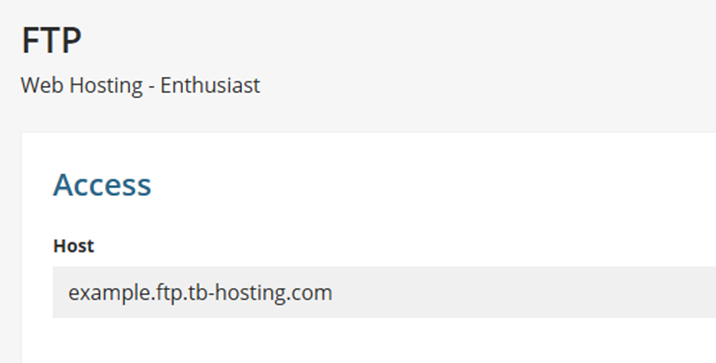
To find the FTP DNS record your domain will need, select Site < FTP.
Step Six
Here you will be presented with the CNAME record your domain needs for FTP access.
Step Seven
Now that you have all your required DNS records, you can update them on your domain wherever your DNS is managed.
Your IPv4 address will need setting up as a blank A record, and as a WWW A record. This also applies to your IPv6 records.
Using the example provided in this article, they will be formatted as follows:
(Hostname / Type / Result)
blank or @ / A / 178.18.125.54
www / A / 178.18.125.54
blank or @ / AAAA / 2a00:13b7:0:1e::f86f:2801
www / AAAA / 2a00:13b7:0:1e::f86f:2801
ftp / CNAME / example.ftp.tb-hosting.com
If you have any further questions, simply raise a support request from within your Online Control Panel or call us on 0345 363 3637. Our Support team are here to help and ready to assist you with your enquiry.
For assistance raising a support request please follow the following guide.